

- MINECRAFT VERSION
- 1.17 / 1.16
Even if for some Minecraft may seem dated in terms of graphics, there are a lot of players that enjoy it just the way it is. For some players, seeing a resource pack that adds more depth and upscales the visuals is something worth having. For those players, the solution may come in the form of the Optimum Realism resource pack. Many such resource packs indeed take the texture resolutions to new extremes to add more details and depth. The compromise is performance. Game performance can be severely affected by high-resolution textures. Optimum Realism attempts to compromise performance as little as possible while still taking the visuals to a whole new level. Optimum Realism is a texture pack that introduces high-resolution textures. The resource pack is available in several different iterations with different resolutions. The 128x resolution can be played for free. Most players may be familiar with this version of the resource pack. It is also the version that has the least impact on game performance. There are 256x, 512x, 1024x and 2048x versions of the resource pack. All of them are available to Patreon members under different tier levels that unlock different versions of Optimum Realism. Members also receive early updates, Discord access, voting power for future updates, and several other perks. One valuable aspect of Optimum Realism is that the resource pack continues to receive frequent updates. It is a project still in development that is benefiting from an active development team.
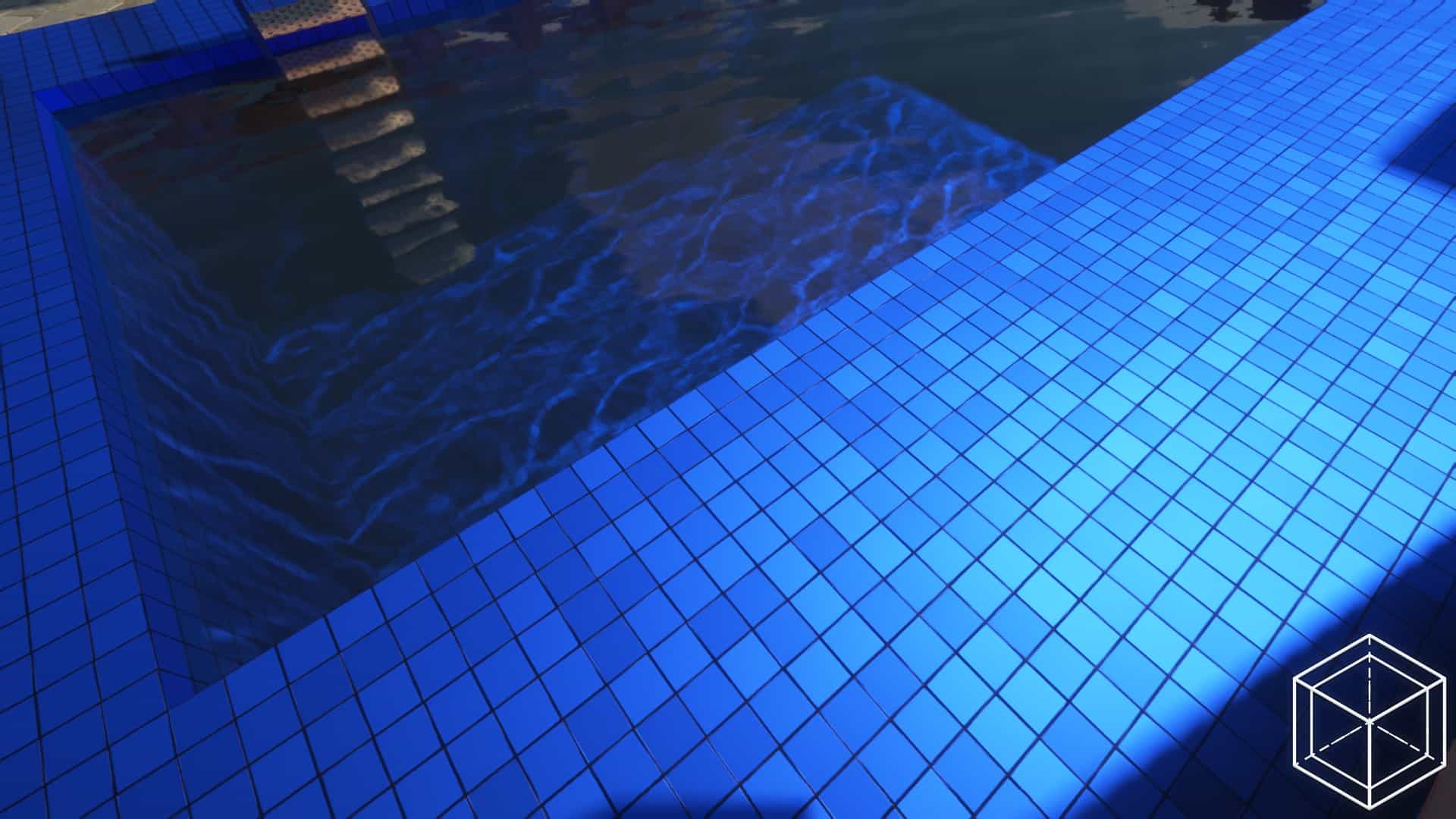
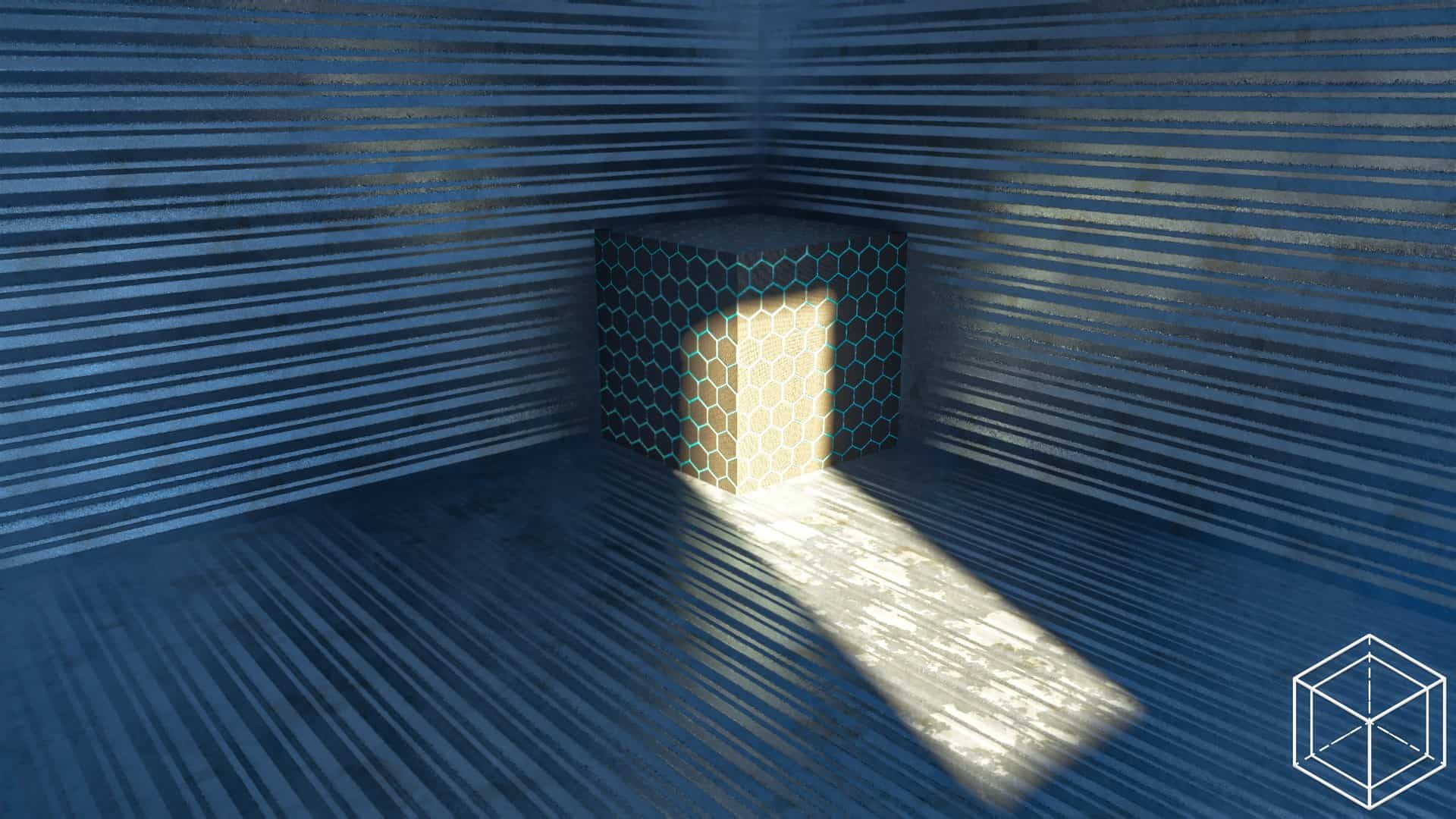
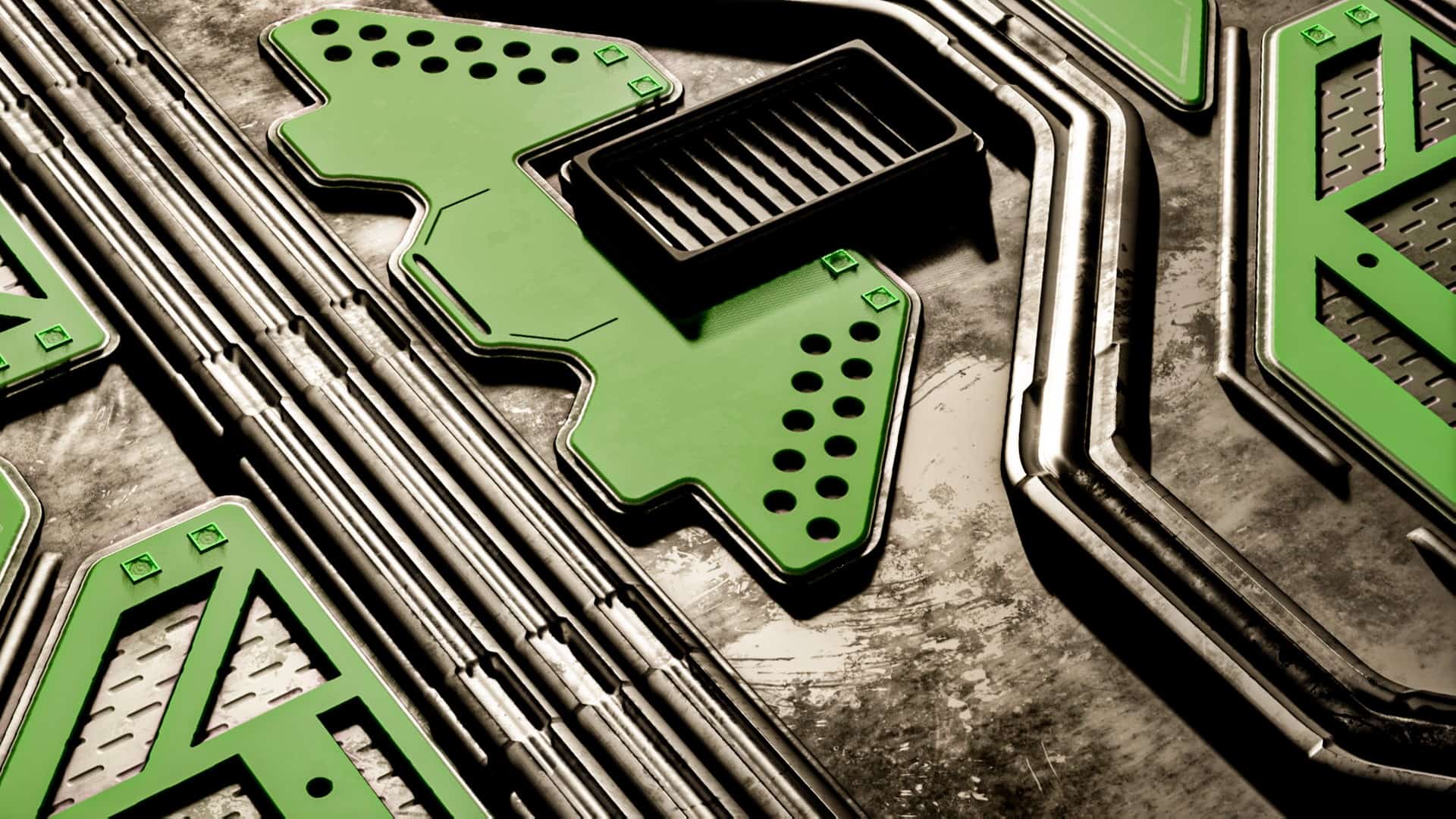
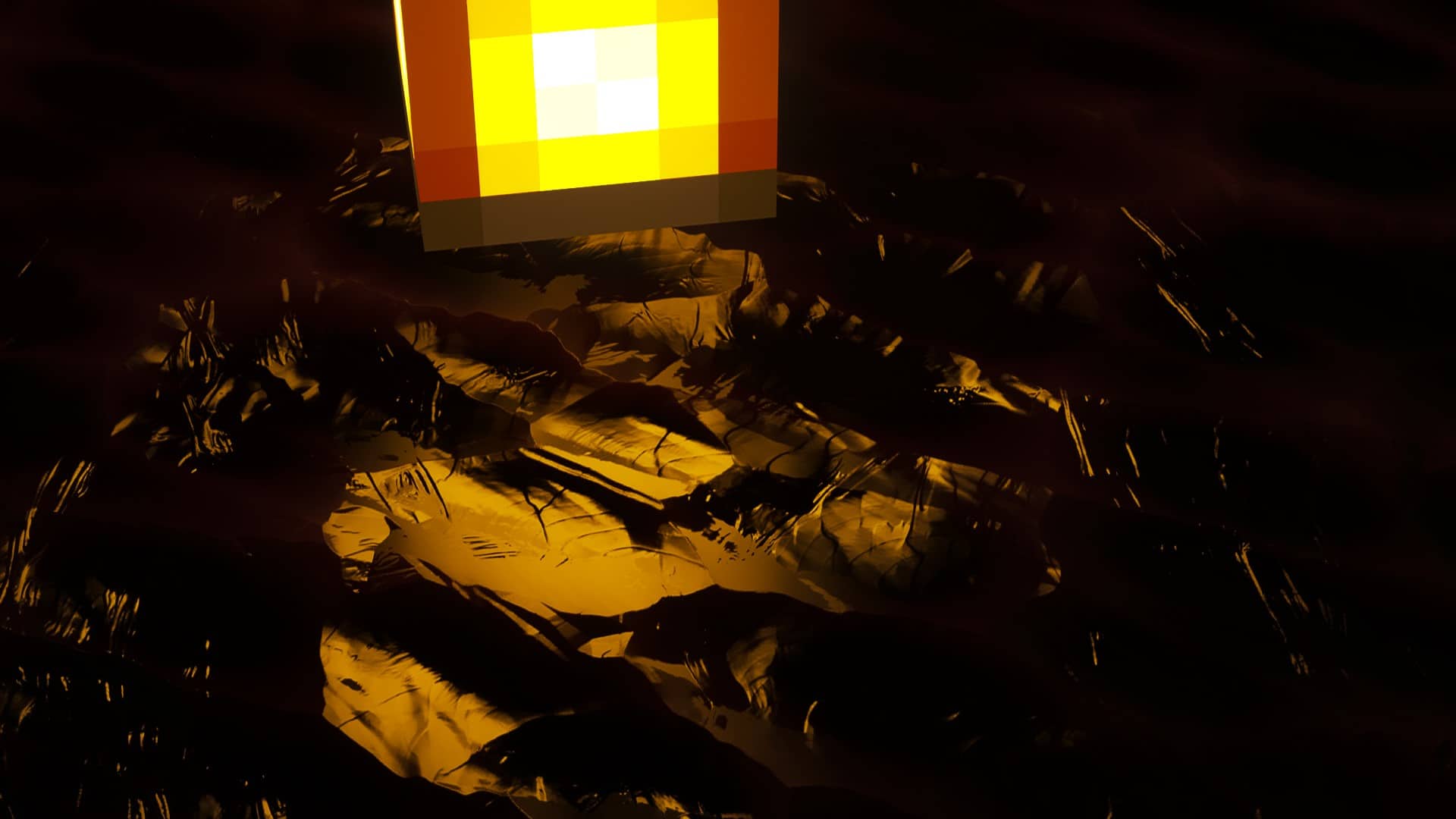
Optimum Realism does several things to improve the visuals in Minecraft. Higher texture resolution is one aspect. It adds more details to ingame objects such as stone, sand, grass, different types of rocks, ores, trees, plants, and more. These additional details make Minecraft look like a modern game. Ingame models have not been changed meaning that even with Optimum Realism, Minecraft still has that classic blocky identity. Another improvement that Optimum Realism introduces is the density of leaves, sticks, and grass. Because more details can be fit into textures, it made sense to add more density to certain items to fill in the gaps. Lastly, the Optimum Realism resource pack makes use of shaders to improve lighting. The immediate effect is a much more vivid and realistic sky. Water in the game also looks considerably better. Because Optimum Realism is a work in progress, there are still some textures that require some touch-ups. Most of the improvements were made for indoor items and objects. Because Optimum Realism introduces textures and resolutions that make Minecraft a photorealistic game, some hardware requirements are recommended by the developers to enjoy the game. The developers recommend running Optimum Realism on a PC running with a GTX 1080 video card or newer. Also, it has a minimum requirement of 8 GB of RAM to run smoothly without any frame drops or freezes. For the best experience, Optimum Realism developers recommend using one of the following shader packs: Kappa, BSL, or SEUS. Other shaders can be used but may have not been properly tested along with the Optimum Realism resource pack.
NOTE: Many resource packs require optifine to be preinstalled, so be sure to install it.
Optimum Realism does several things to improve the visuals in Minecraft. Higher texture resolution is one aspect. It adds more details to ingame objects such as stone, sand, grass, different types of rocks, ores, trees, plants, and more. These additional details make Minecraft look like a modern game. Ingame models have not been changed meaning that even with Optimum Realism, Minecraft still has that classic blocky identity. Another improvement that Optimum Realism introduces is the density of leaves, sticks, and grass. Because more details can be fit into textures, it made sense to add more density to certain items to fill in the gaps. Lastly, the Optimum Realism resource pack makes use of shaders to improve lighting. The immediate effect is a much more vivid and realistic sky. Water in the game also looks considerably better. Because Optimum Realism is a work in progress, there are still some textures that require some touch-ups. Most of the improvements were made for indoor items and objects. Because Optimum Realism introduces textures and resolutions that make Minecraft a photorealistic game, some hardware requirements are recommended by the developers to enjoy the game. The developers recommend running Optimum Realism on a PC running with a GTX 1080 video card or newer. Also, it has a minimum requirement of 8 GB of RAM to run smoothly without any frame drops or freezes. For the best experience, Optimum Realism developers recommend using one of the following shader packs: Kappa, BSL, or SEUS. Other shaders can be used but may have not been properly tested along with the Optimum Realism resource pack.
Optimum Realism should be compatible with all of these Minecraft versions: 1.17.1 - 1.17 - 1.16.5 - 1.16.4 - 1.16.3 - 1.16.2 - 1.16.1 - 1.16
Optimum Realism — Screenshots







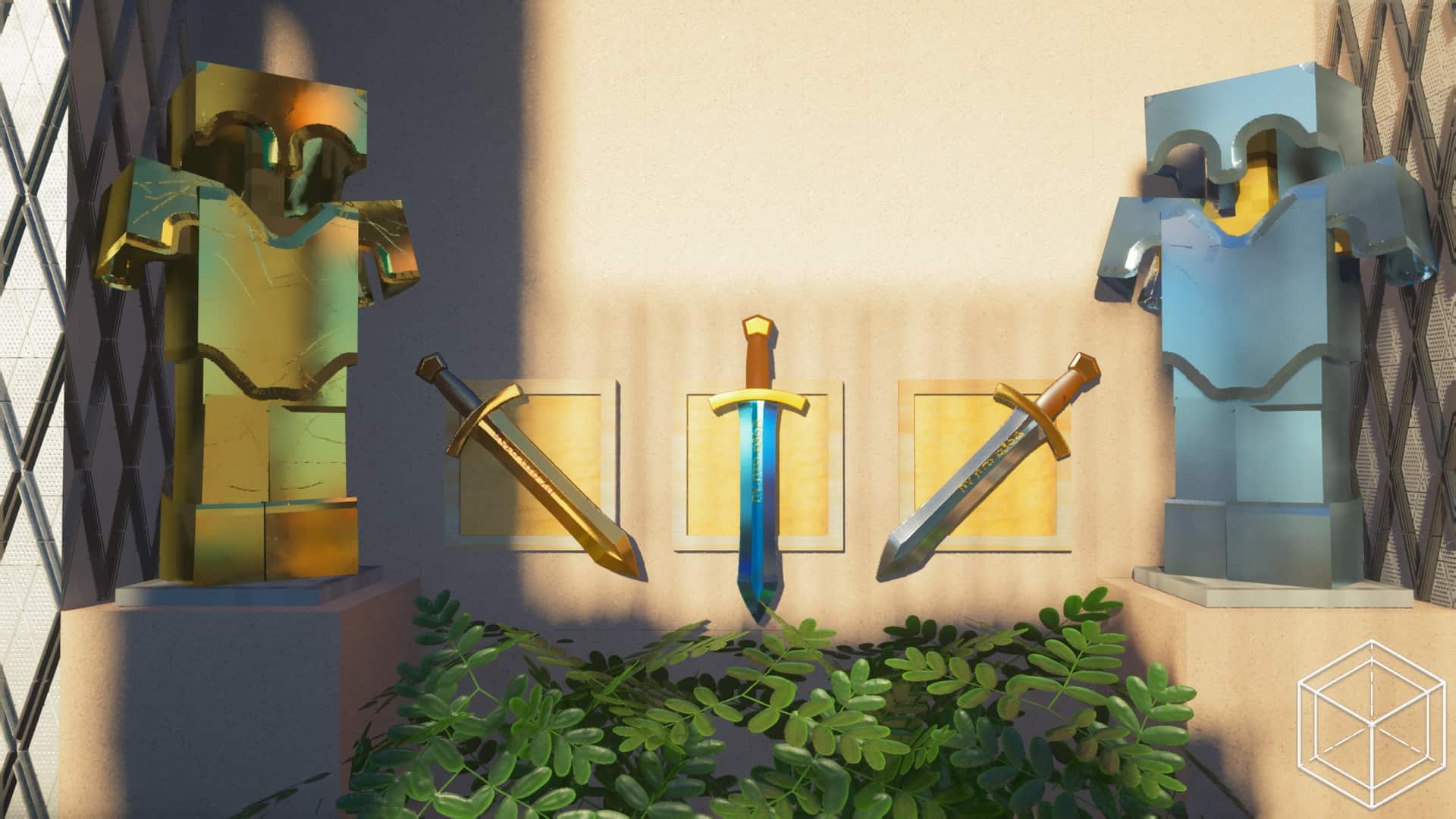
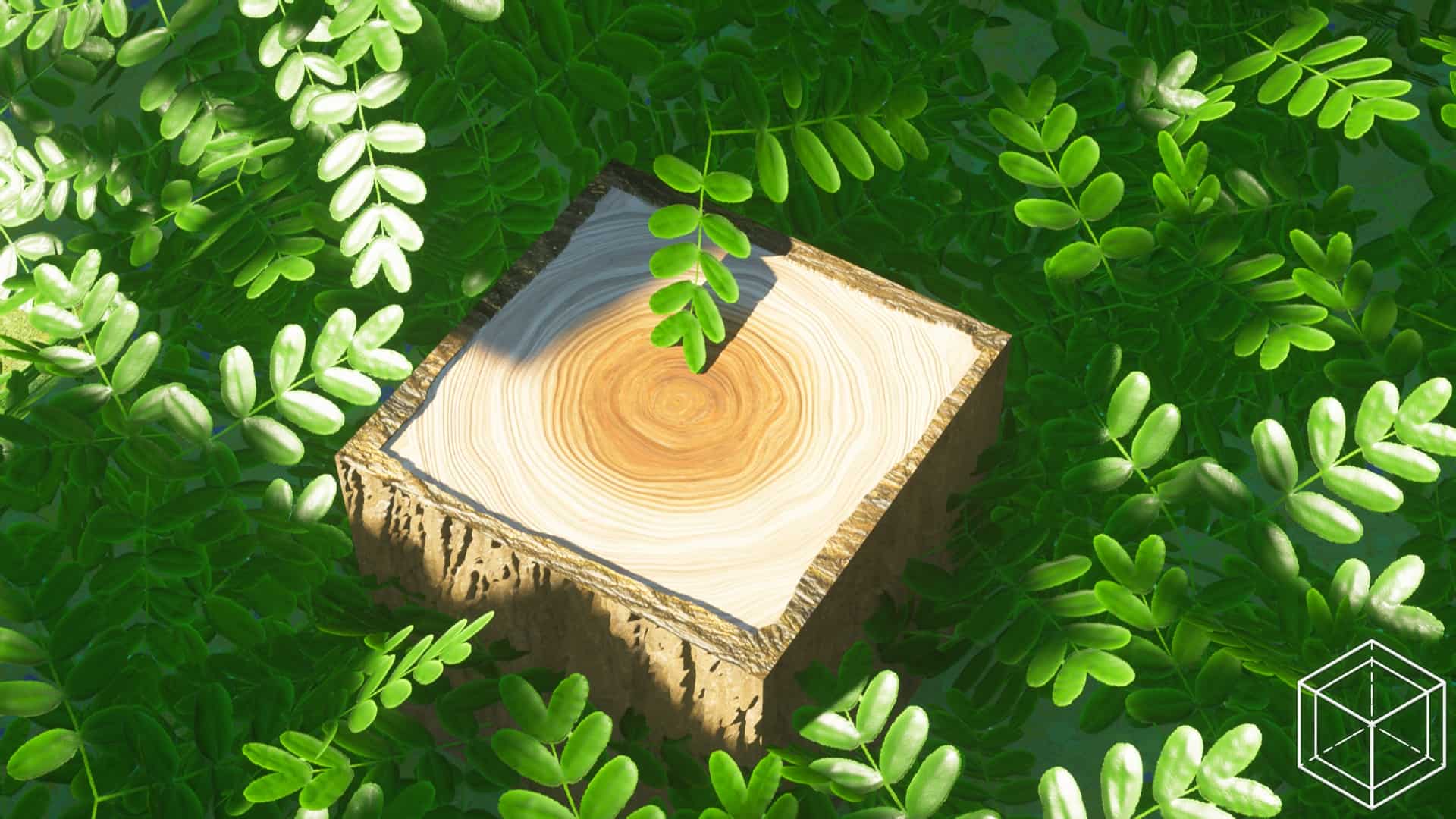




- Show fewer images
How to install Optimum Realism Resource Pack:
NOTE: Many resource packs require optifine to be preinstalled, so be sure to install it.
- Download the Optimum Realism texture pack for Minecraft from the download section below. – if there are many different versions, just pick the one that you like or that you think your PC can handle
- Launch the game client through the Minecraft launcher.
- On the main menu, click "Options".
- On the options menu, click "Resource Packs...".
- Click on "Open Resource Pack Folder". – folder titled "resourcepacks" will pop up
- Move the .zip file you downloaded in the first step to the newly opened "resourcepacks" folder.
- Click "Done".
- Click on "Resource Packs..." again.
- Your pack should have appeared in the left window, just hover over it and click on the arrow pointing to the right.
- Click "Done" again.
- The pack has now been successfully loaded and ready to be used in your world


