- MINECRAFT VERSION
- 1.18.1 → 1.7.10
ProjectLUMA is a passion project from some dedicated Minecraft shader developers. Taking inspiration from the KUDA shader pack, this newly designed Project LUMA shader pack is made to upgrade your game’s visuals in a fresh way. ProjectLUMA does not cut any corners, and has been made completely from scratch to ensure game optimization and to avoid any in-game errors.
This is a very exciting shader pack because of the outstanding visuals that you will find within the Minecraft world after install. ProjectLUMA’s main goal is to make the game world look as realistic and beautiful as possible. It is the collection of visual overhauls within the pack that come together to give you a brand new experience.
Once you load into the game world, you will immediately notice the new photorealistic skyblocks and the god rays shining down on the game world around you. There is a whole new level of immersion created due to the lighting effects provided by this shader pack.
You will find that there are some advanced graphical adjustments to the game from this shader pack such as the introduction of ambient occlusion and native motion blur. The developers have added visual enhancements that you might normally find in AAA games within Minecraft.
After getting familiarized with the new game world features and visual upgrades, you might notice that you are more at one with the game than ever before. This is because ProjectLUMA does a fantastic job of improving the comfort of the game world. You will picture yourself inside the game world more than ever with the new elements of realism. To further increase the realistic gaming experience of Minecraft, consider looking for a recommended realistic texture pack as well.
Be mindful that this shader pack is very demanding for computers and will run smoothly on newer, high-end machines. Those with older machines might see low framerates or less than optimal gaming conditions. ProjectLUMA Shaderpack can only be used by those who have Optifine installed for the shaders to function properly. ProjectLUMA Shaderpack can automatically be used within your Minecraft world once Optifine is installed.
SCREENSHOT
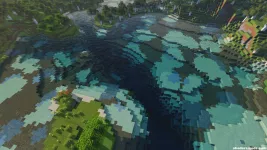
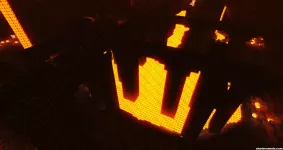
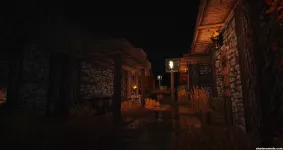
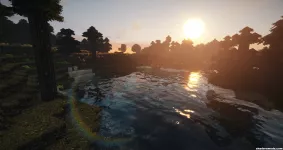
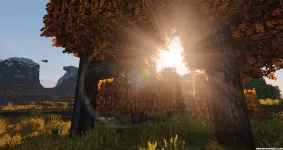
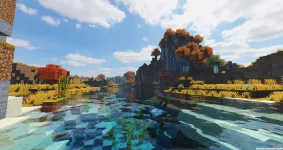
 Shaders Compare Tool.

Vanilla Day

Vanilla Noon

Vanilla Sunset

Vanilla Night

Vanilla Water

Vanilla Underwater

Vanilla Rain

Vanilla Light

Vanilla The Nether

ProjectLUMA Shaders

ProjectLUMA Shaders

ProjectLUMA Shaders

ProjectLUMA Shaders

ProjectLUMA Shaders

ProjectLUMA Shaders

ProjectLUMA Shaders

ProjectLUMA Shaders

This is a very exciting shader pack because of the outstanding visuals that you will find within the Minecraft world after install. ProjectLUMA’s main goal is to make the game world look as realistic and beautiful as possible. It is the collection of visual overhauls within the pack that come together to give you a brand new experience.
Once you load into the game world, you will immediately notice the new photorealistic skyblocks and the god rays shining down on the game world around you. There is a whole new level of immersion created due to the lighting effects provided by this shader pack.
You will find that there are some advanced graphical adjustments to the game from this shader pack such as the introduction of ambient occlusion and native motion blur. The developers have added visual enhancements that you might normally find in AAA games within Minecraft.
After getting familiarized with the new game world features and visual upgrades, you might notice that you are more at one with the game than ever before. This is because ProjectLUMA does a fantastic job of improving the comfort of the game world. You will picture yourself inside the game world more than ever with the new elements of realism. To further increase the realistic gaming experience of Minecraft, consider looking for a recommended realistic texture pack as well.
Be mindful that this shader pack is very demanding for computers and will run smoothly on newer, high-end machines. Those with older machines might see low framerates or less than optimal gaming conditions. ProjectLUMA Shaderpack can only be used by those who have Optifine installed for the shaders to function properly. ProjectLUMA Shaderpack can automatically be used within your Minecraft world once Optifine is installed.
ProjectLUMA — Features
- Photorealistic skyboxes
- Godrays
- Reflections
- PBR Support
- Ambient Occlusion
- Native Motion blur
- Realistic water waves
- Dirty Lens
- Auto Bump
- POM
SCREENSHOT
ProjectLUMA Shaders — Comparison
Not sure if this shader is right for you, you can easily compare it between Minecraft vanilla and other shader packs with ourShaders Compare Tool.
Vanilla Day
Vanilla Noon
Vanilla Sunset
Vanilla Night
Vanilla Water
Vanilla Underwater
Vanilla Rain
Vanilla Light
Vanilla The Nether
ProjectLUMA Shaders
ProjectLUMA Shaders
ProjectLUMA Shaders
ProjectLUMA Shaders
ProjectLUMA Shaders
ProjectLUMA Shaders
ProjectLUMA Shaders
ProjectLUMA Shaders
ProjectLUMA Shaders — Installation Guide
- The first step is to download and install the Optifine HD on your Minecraft client!
- Now go to:
- Windows => %appdata%\.minecraft
- Mac OS X => ~/Library/Application Support/minecraft
- Linux => ~/.minecraft
- Search for the “shaderpacks” folder.
- Copy downloaded zip file in the shaderpacks folder.
- Now you can select shader in-game from Options -> Video Settings -> Shaders!
- That was all!
- Minecraft 1.7.10 or above, 1.18.x is highly recommended.
- The latest version of Optifine.
- A discrete GPU.
- Options > Video Settings > Details > Clouds: OFF or Default
- Options > Video Settings > Details > Sky: ON
- Go to Options -> Video Settings -> Shaders -> Shader Options
- Select a lower profile and click on the done button.
- Lite
- Medium
- High
- Ultra
- Cinematic


![GPet ⭐ Modern & Advanced Pet Plugin - [1.20 - 26.1.1] ✨](/data/resource_icons/2/2118.jpg?1770500906)